Divi Dash is Elegant Themes’ centralized site-management tool included with a Divi membership. It gives agencies one place to add unlimited sites, run bulk updates, schedule auto-updates, manage users and clients, view site health, and single-click into WordPress sites. It’s a practical, low-cost alternative to third-party managers for teams already invested in Divi — best used for Divi-centric workflows and as a complement to your existing maintenance SOPs.
What Divi Dash actually is
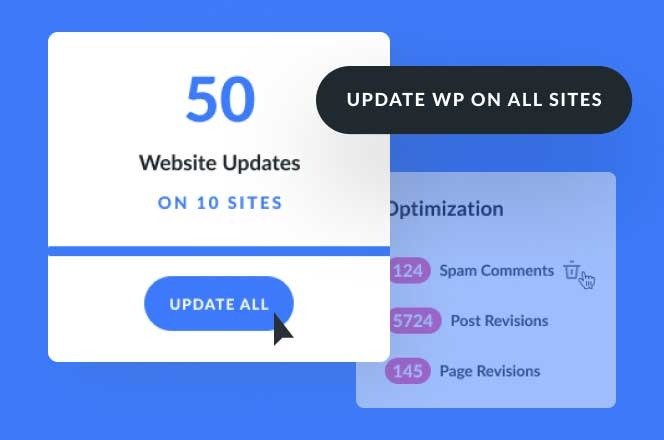
Divi Dash is a web dashboard (inside your Elegant Themes account) that lets you connect and manage multiple WordPress sites from one interface. Once a site is added, you can see pending updates, run bulk theme/plugin updates, schedule automatic updates, manage users, assign sites to clients, view action history, and perform one-click admin logins — all without repeatedly logging into each WordPress dashboard. It’s included with a Divi membership at no extra charge.
Key features (what matters for devs & agencies)
-
Centralized website dashboards — a single view showing site health, active themes/plugins, optimization hints, and update needs per site. Great for triage.
-
Bulk updates & “Update Everything” — run updates across many sites in one action or schedule them automatically per site. Massive time saver for maintenance retainer work.
-
Theme & plugin inventory — see which themes/plugins are installed across your network, filter by version or status, and deploy actions (activate/deactivate/delete) centrally.
-
One-click sign-in — securely access any connected site as an admin without hunting credentials. Useful for support tickets and quick fixes.
-
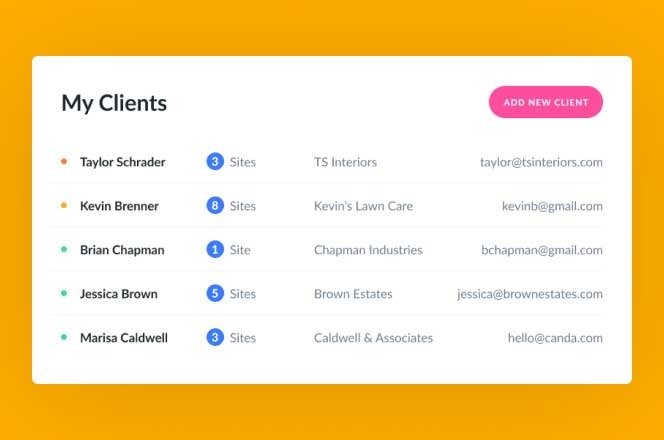
Client & team management — tag sites by client, maintain client records, and grant granular Divi Teams permissions to colleagues. Makes handing off tasks or onboarding easy.
-
History & audit trail — every update/action is recorded so you can audit what was changed and when — crucial for support SLAs.
-
Secure connection options — connect sites using either admin credentials (convenient) or a connection key + plugin for credentialless, more secure linkups. (Use the key method when managing client sites you don’t want direct passwords for.)
How to get started — step-by-step (developer friendly)
-
Access Divi Dash — log into your Elegant Themes account →
Dashin the members area. -
Add your first site — click Add Website and choose connection method:
-
Username & Password: quick but requires temporary credentials (Divi Dash does not store passwords).
-
Connection Key (recommended for clients): download the Divi Dash plugin on the client site, generate a key, paste into the dashboard — no credentials shared.
-
-
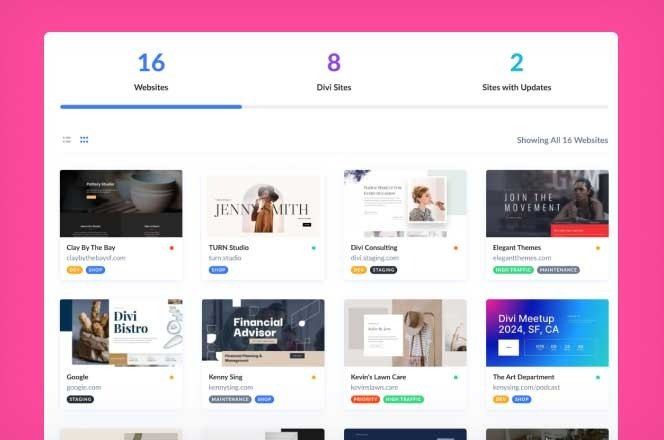
Review the Websites tab — you’ll see all connected sites, filters, and quick statuses (sites with updates, Divi sites, etc.).
-
Set up update rules — configure automatic update schedules per site or opt for manual bulk updates. Test automatic updates on a staging site first.
-
Organize clients & tags — create client records, assign sites, and tag them for quick filtering.
-
Grant team access — integrate Divi Teams for per-user permissions, so junior devs or contractors only see what you allow.
(See Elegant Themes’ step-by-step guide and help docs for screenshots and video walkthroughs.)
Security & best practices (must-read for agencies)
-
Prefer connection key for client sites — it avoids sharing admin credentials and keeps auditability.
-
Test auto-updates on staging before enabling globally — plugin/theme updates occasionally break customizations. Use staged release windows for large clients.
-
Use role-based access (Divi Teams) — never share a single account; assign narrow permissions and monitor History logs.
-
Backups first — ensure your backup solution is active before running bulk updates (Divi Dash simplifies updating but does not replace backups). Elegant Themes recommends pairing management with a backup & rollback plan.
Where Divi Dash fits vs other site managers
Divi Dash is particularly attractive if your agency already uses Divi because it’s included in the membership, and integrates tightly with Divi Teams and Divi-specific workflows. Compared with third-party managers (ManageWP, MainWP, InfiniteWP, SmartCrawl/Jetpack offerings), Divi Dash’s advantages are:
-
Cost: included with Divi membership (no separate subscription if you already pay for Divi).
-
Tight Divi integration: one-click Divi installs and Divi-specific tools.
Consider third-party systems if you need:
-
Advanced uptime monitoring, reporting UI that’s client-branded, or extremely large networks with custom plugin compatibility that Divi Dash does not cover yet.
Pros & Cons (agency lens)
Pros
-
Included with Divi membership — good ROI for Divi-centric agencies.
-
Speeds maintenance tasks (bulk updates, scheduled updates).
-
Client/org features (tags, clients, history, one-click login).
-
Divi Teams integration for granular permissions.
Cons / Limitations
-
Feature set optimized for Divi workflows — less attractive if your portfolio uses many non-Divi, custom platforms.
-
Still maturing compared with specialized enterprise site managers (reporting, uptime, white-label).
-
Auto-update risks — must be tested; auto updates don’t remove the need for backups and QA.
Pricing & licensing
Divi Dash is included for free with your Divi membership. That means agencies with Divi subscriptions (annual or lifetime) get Divi Dash bundled at no extra cost. If you don’t already have a Divi membership, factor that membership cost into the total TCO (Divi membership provides Divi theme, Divi Pro add-ons, Divi Cloud, Divi AI credits, and Divi Dash).
Real agency workflows (examples)
Maintenance retainer
-
Tag client sites in Divi Dash → weekly automated updates on staging → manual review → push to production. Use History logs for SLA reporting.
New client onboarding
-
Use the connection key to onboard client sites without password exchange → install Divi starter pack automatically → assign to client folder and set update policy.
Emergency patching
-
Use the Updates tab to list sites needing patches, mass-update critical security patches, and check History to confirm success.
Final verdict
If your agency is heavily invested in Divi, Divi Dash is a no-brainer: it removes friction, reduces subscription bloat, and centralizes common maintenance tasks in a Divi-centric workflow. If your portfolio is mixed or you need enterprise reporting/white-label features, evaluate Divi Dash alongside other managers (and treat Divi Dash as the maintenance layer while keeping a separate monitoring/reporting system if needed).
Manage all your WordPress & Divi sites with Divi Dash
Divi Dash is included with your Divi membership — add unlimited websites, run bulk updates, and grant team permissions from one dashboard. Ideal for agencies managing multiple client sites.
Get Divi + Divi Dash (See Plans)
Disclosure: This link is an affiliate link. WPChats may earn a commission if you purchase through this link at no extra cost to you.